Clip without a credit meter
Start with a supported video URL or your SSD. Find highlights in recordings up to 3 hours, then choose the moments worth keeping.
 clippy.CREATOR
Built for people who clip for a living and editors who create for clients. Capture live moments, refine the cut and prepare your next post. Local clipping and repeat edits use no minute credits, so you can keep working until the edit feels right.
Apple silicon Mac · macOS 26 or later · Full requirements ↓
Start with a supported video URL or your SSD. Find highlights in recordings up to 3 hours, then choose the moments worth keeping.
Try different cuts, adjust captions, shorten silences and balance your audio. Local reruns do not cost extra.
Use a review workflow to approve your edits before they enter its configured publishing schedule. Connect supported YouTube, Instagram Reels and Facebook Page Reels destinations, or export for manual posting.
Earlier full-access licenses keep their original tools while valid. New Basic, Pro and Agency packages have different feature access; see the plan comparison and account availability before purchasing. Processing speed and capacity depend on your Mac and available storage; Clip finder processes one long recording at a time. Optional connected AI services may charge separately. TikTok Direct Post requires an approved developer app and individual post review before scheduling. Facebook personal profiles and Groups use reviewed manual exports. Connected publishing requires platform permissions and eligibility; keep Clippy running and your Mac awake for scheduled uploads.
Choose videos for a batch, then work through orientation, trimming, captions, silence removal, audio, jump cuts and color.
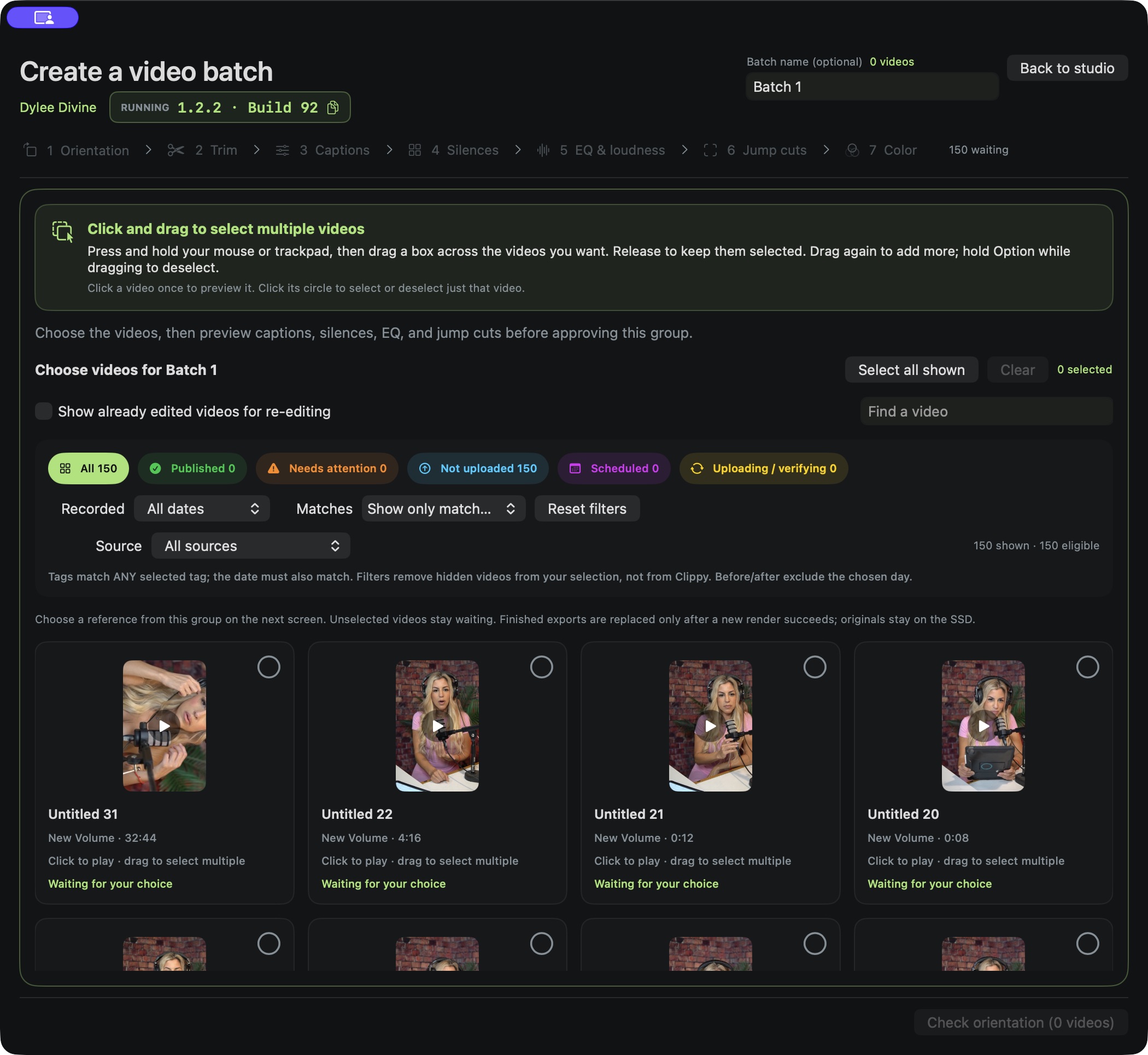
Actual Clippy for Mac batch selection interface. The capture shows example footage from an earlier build; controls may differ in your installed version. Click the image to view full size.
INSIDE CLIPPY · November 2, 2026
Build the process, see what needs attention, and learn how to use it. Explore the native tools for clipping and client work.
Native Mac interfaces, shown with example data. Check your account for the available installer; updating this page does not install an app update.
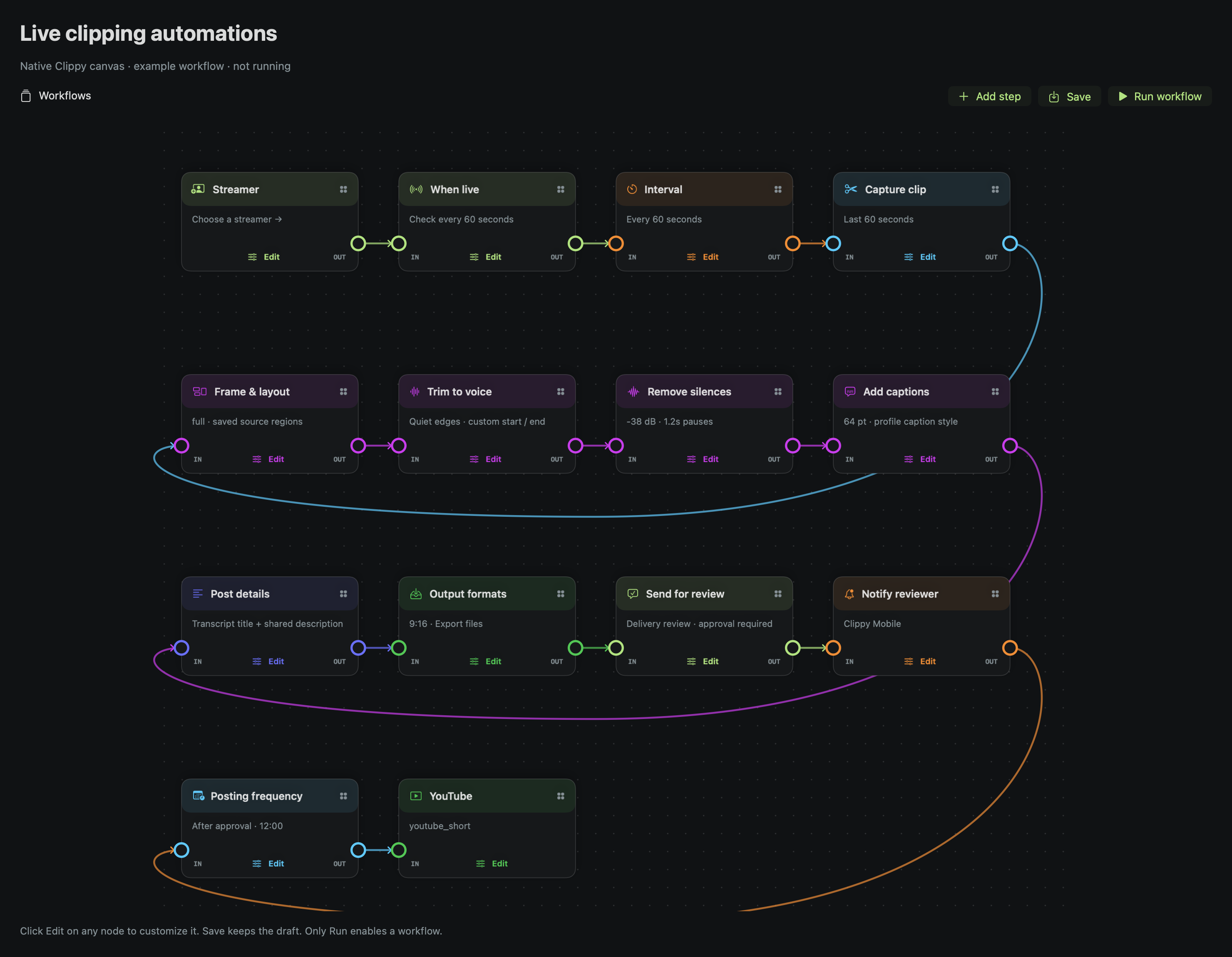
Choose a preset, edit each node in a pop-up, and apply independent workflows to several creators. Keep capture, editing and review visible in one place.
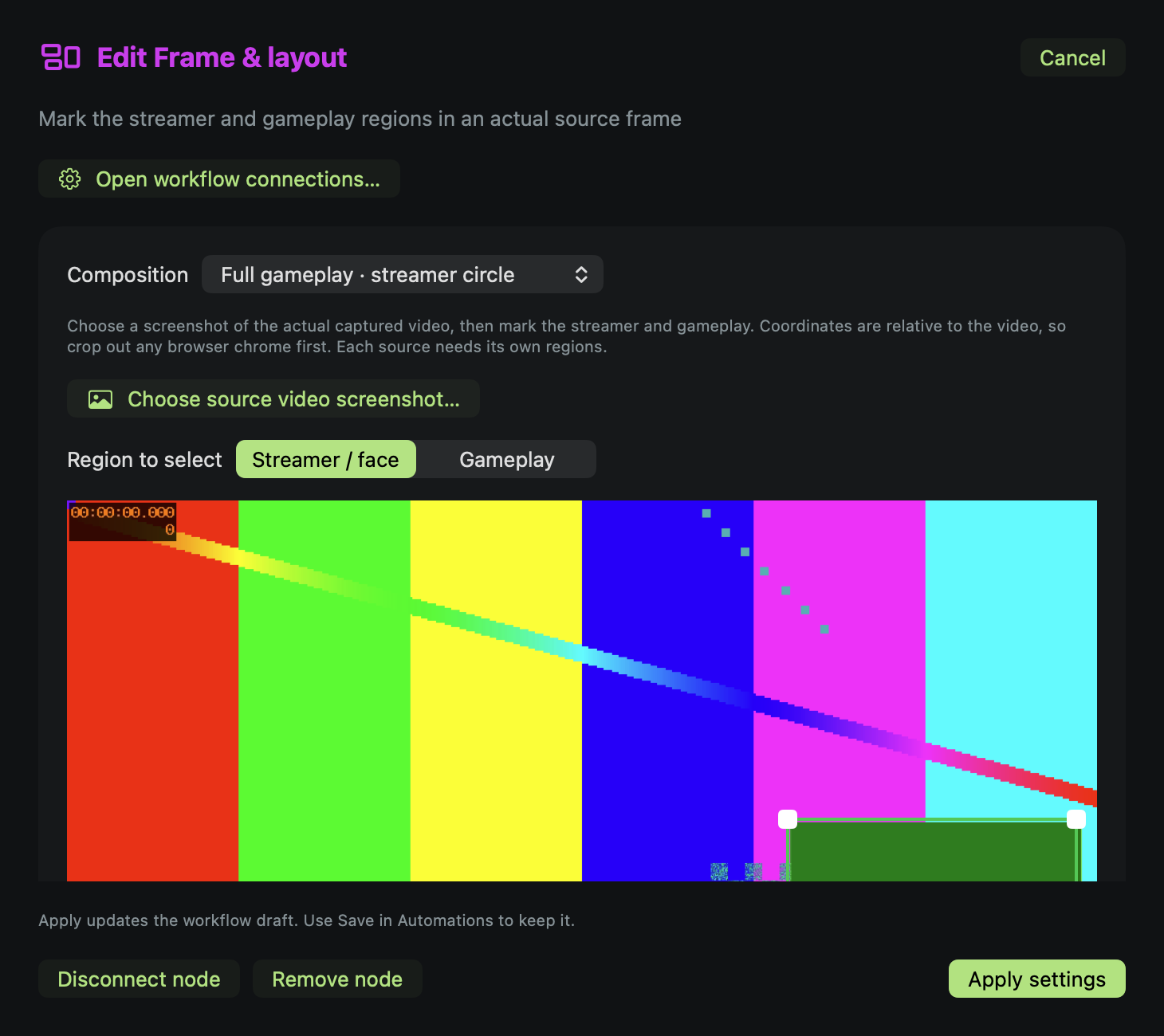
Mark the streamer and gameplay in a source screenshot. Choose top and bottom panels or a circular camera overlay, then place captions where they belong.
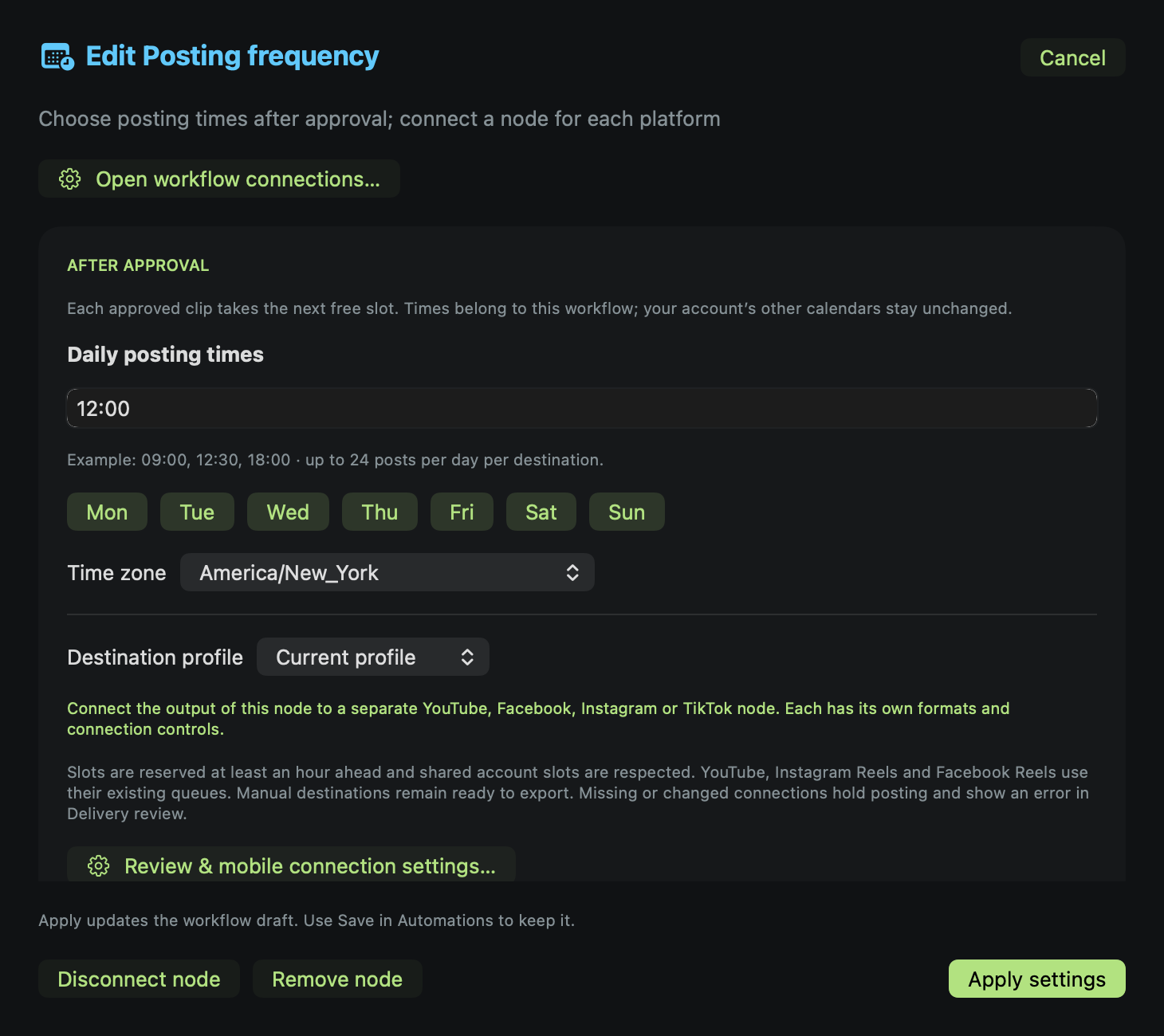
Give review, notifications, posting frequency and each destination their own nodes. Each revision waits for your approval before scheduling can advance.
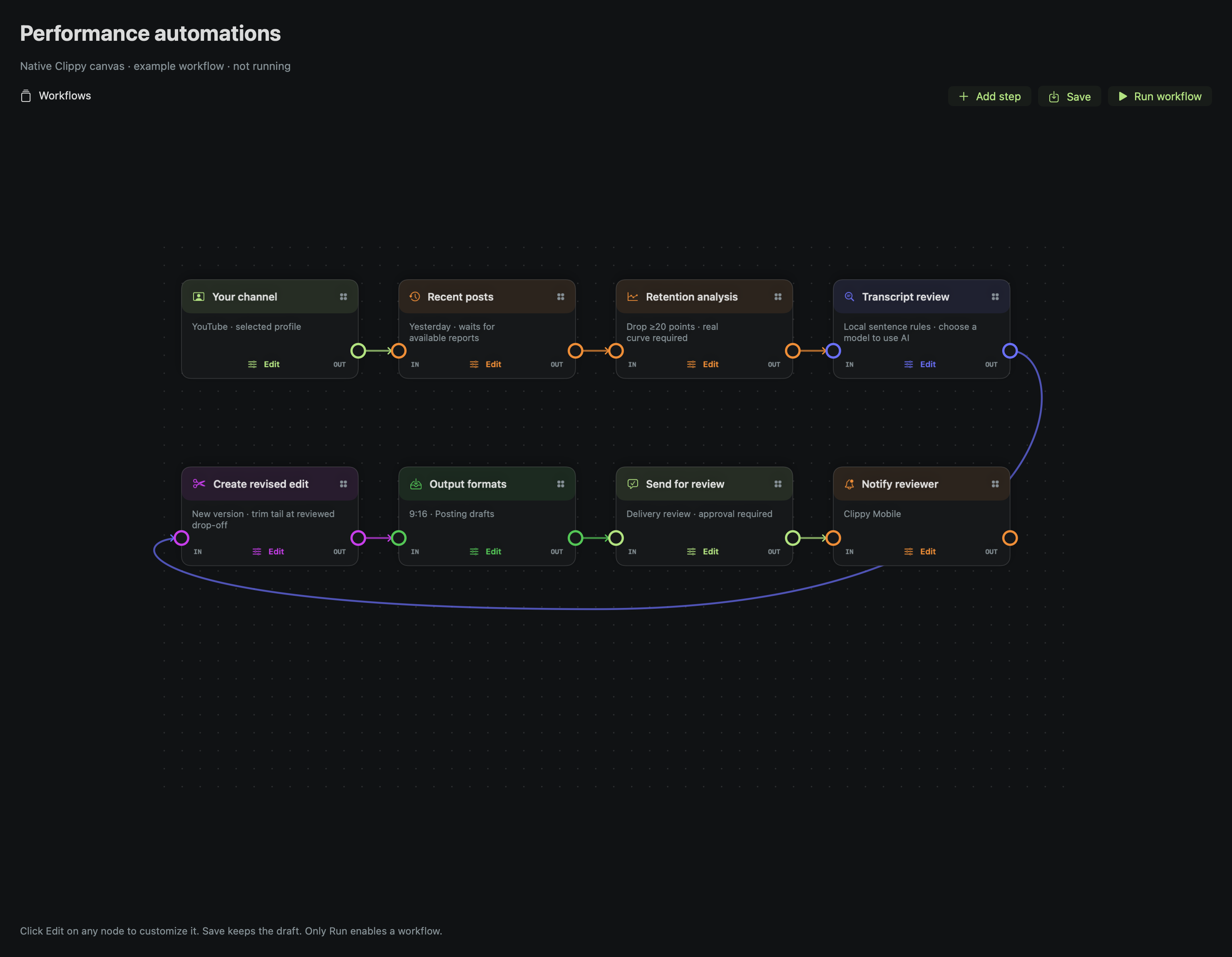
Choose yesterday’s posts or recent uploads, inspect measured retention and review the complete transcript. Create a separate revised edit from linked original footage.
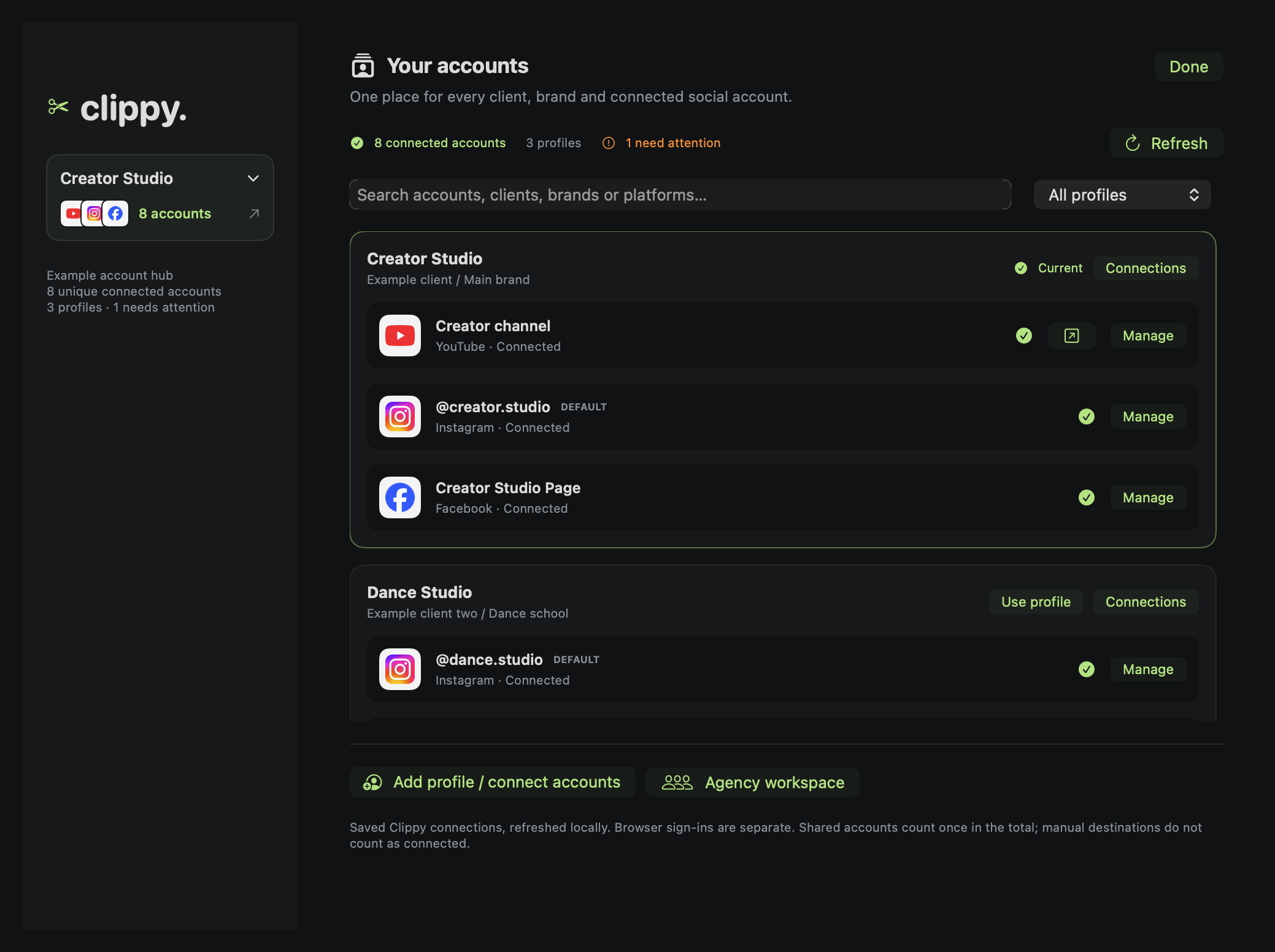
Open the sidebar’s platform logos and connected-account count. Search profiles, inspect accounts needing attention, and manage the right client or business.
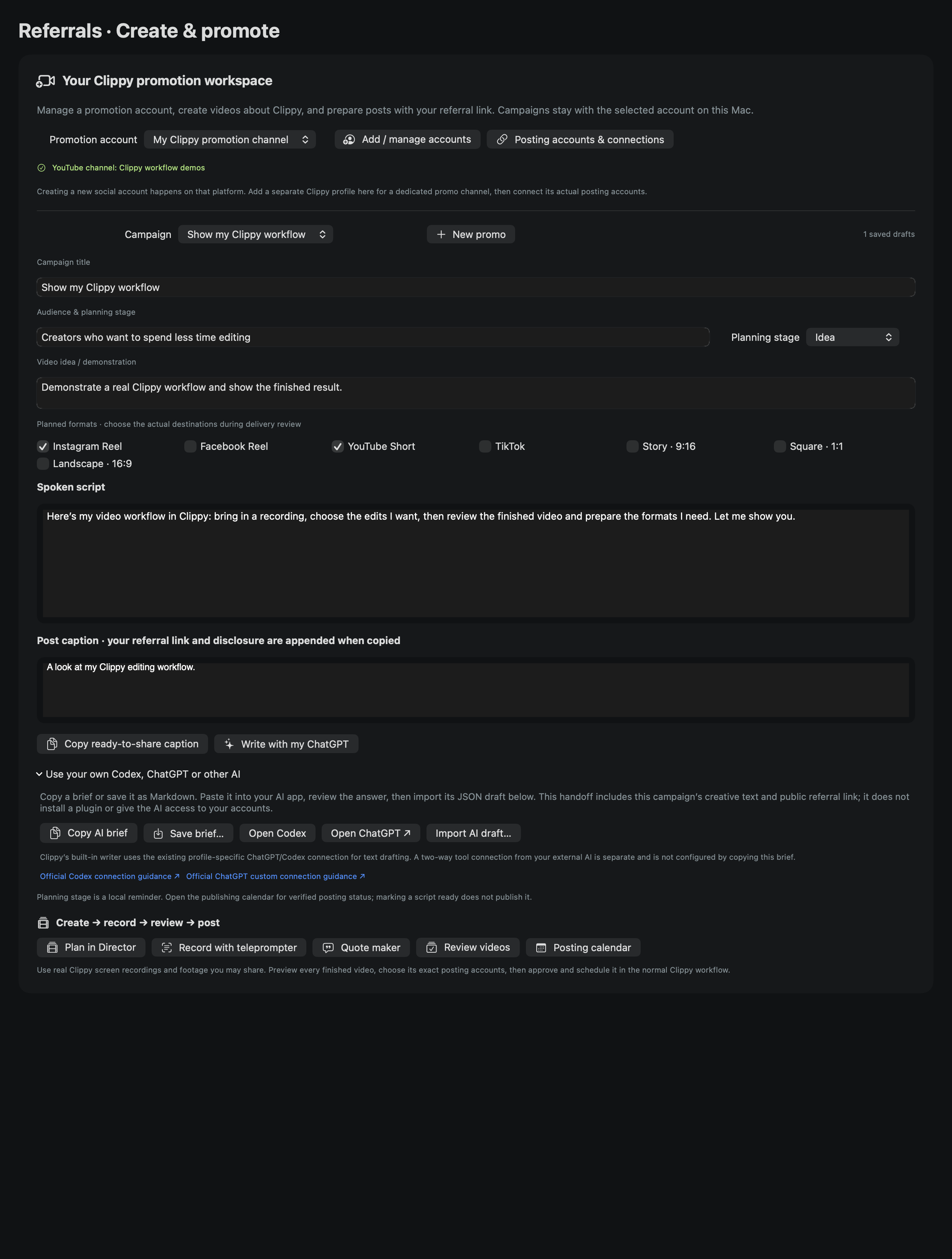
Save campaign ideas, scripts and captions for your Clippy promotion channel. Use the connected writer or hand a creative brief to your own AI, then record and review.
Real interfaces, example data. Screenshots come from Clippy’s native controls in an isolated demonstration workspace. Counts and accounts shown are examples. Open Walkthrough in Clippy’s sidebar for searchable guides and step-by-step help beside your workspace.
Publishing stays explicit. Connected YouTube, Instagram Reels and Facebook Page Reels use their supported queues. TikTok Direct Post needs an approved developer app and individual video review before scheduling. Personal Facebook profiles and Groups use reviewed manual exports. Keep Clippy running and your Mac awake for scheduled uploads. Mobile review uses the paired connection; it is not a background push alert.
Retention needs real evidence. YouTube reports can arrive 48–72 hours later. TikTok’s connected API needs a measured retention import. The first revision strategy trims the tail at a transcript boundary; results are not a performance guarantee.
CLIPPY FOR MAC + PAIRED IPHONE COMPANION
Use Wi-Fi tether to monitor a selected Mac video window live on your iPhone. With a separate customer-operated connection service, you can also send footage to a selected Mac profile and review edits from your phone.
Film a take or choose footage from Photos or Files. Send it to your paired Mac profile using Edit at home.
Use the profile’s saved editing defaults, or send a finished video unchanged. Footage arrives in your chosen Mac folder.
Watch the preview, request changes at a specific moment, and approve when ready. Approval follows your configured desktop publishing schedules.
A separate iPhone app pairs with Clippy for Mac. Ask for the current compatible build and setup help.
Live Wi-Fi monitor: keep both devices on the same local network. On the Mac, open Mobile app → Start Wi-Fi tether, then choose the video window. On your iPhone, open Studio → Wi-Fi tether → Scan Mac QR. Allow Camera and Local Network access when asked. After pairing, the phone can reconnect while tether is running. This monitor needs no relay, VPN or social sign-in.
Recording transfers and remote review: keep your licensed Mac awake and running Clippy. Configure your own HTTPS cloud connection service or a service on your Mac through a private VPN, then pair the Mac profile using its separate upload/review code. Clippy’s website does not relay your videos.
Keep the phone app open during upload. MOV/MP4 transfers support files up to 1 GB. The iPhone companion is a separate beta app; use compatible builds and verify setup with a short test video. Editing and rendering run on the Mac.
Get pairing help ↗Clippy is a desktop app for a Mac. Your Mac’s operating system is called macOS; an iPhone’s iOS version does not determine compatibility.
Performance depends on footage resolution, codec, duration, effects and available memory. These recommendations are not a render-speed guarantee; testing across lower-memory Macs is still pending.
Open Apple menu → About This Mac and check Chip, Memory and macOS. For free disk space, open System Settings → General → Storage. Apple’s guide to your Mac’s specifications ↗
Unsure whether your Mac is suitable? Ask us before buying with your chip, memory, macOS version and typical video length. Please leave out your Mac’s serial number.